
3 Photos
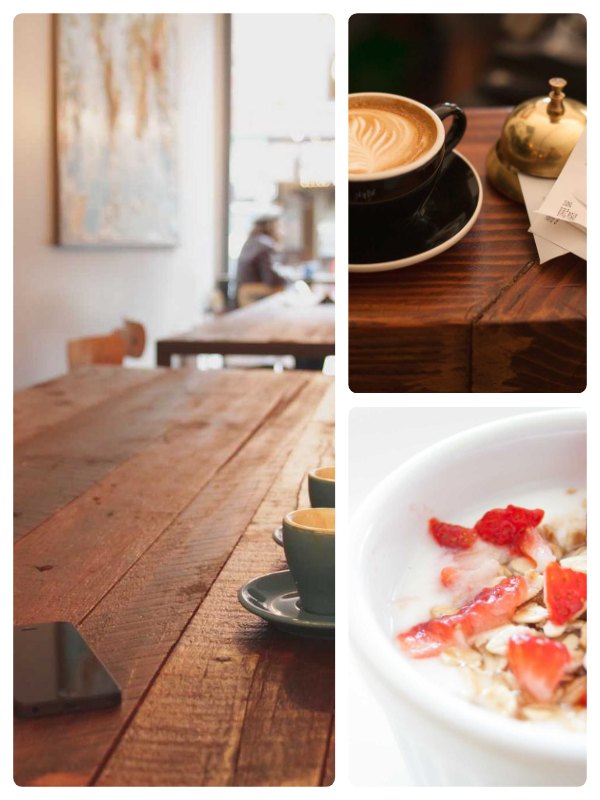
Pair one hero shot with two close-up details
Drop 1–9 Photos Here
Build an image collage or add a clean border to a single photo (JPG, PNG, WebP)
100% private · Processed locally in your browser · No watermark
ImageCollage is a fast, browser-only image collage maker and online border editor built for creators, photographers, and everyday storytelling. Combine 1 to 9 photos into balanced grids—including five dedicated 9-photo layouts—or frame a single picture with crisp white borders and Polaroid margins without uploading a single byte to any server.
Whether you want to quickly combine images side by side for a comparison post, assemble a clean picture collage for Instagram Stories, or prepare a sharp photo collage for printing on A4 paper, every adjustment previews in real time and exports watermark-free in high-resolution JPG or lossless PNG.
Collage Ideas & Real Exports
Staggered layouts and crisp borders elevate ordinary snapshots instantly. Click any example to load its preset into the editor above.
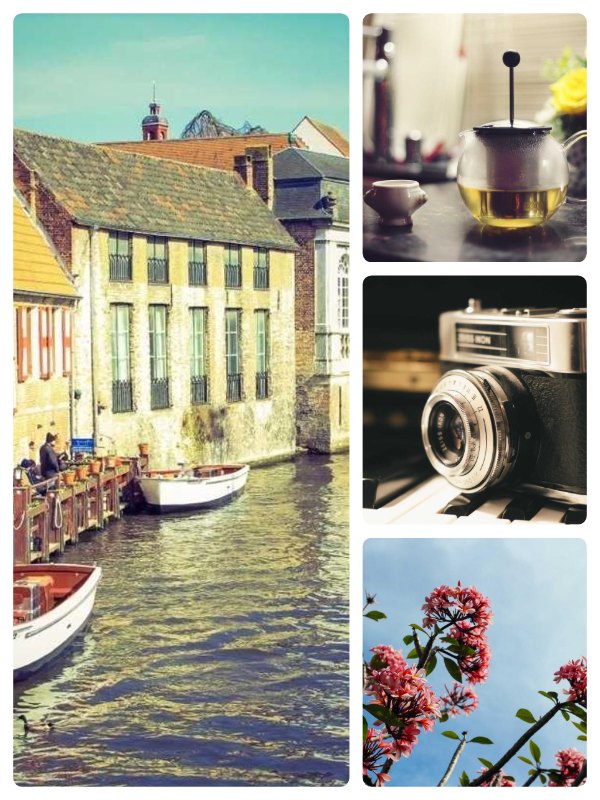
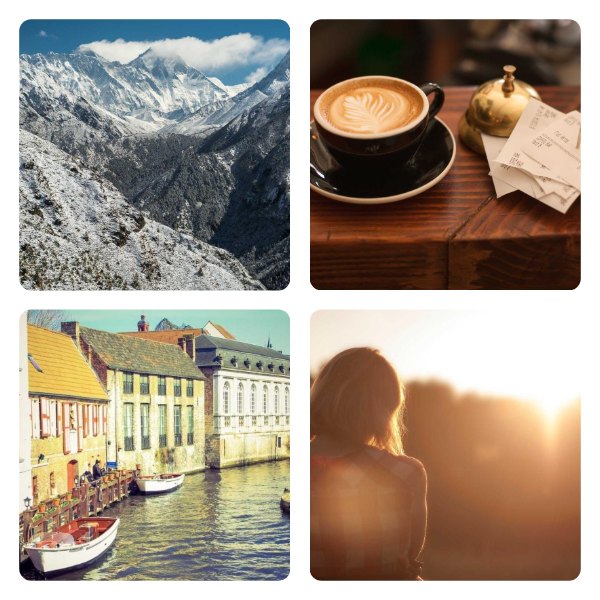
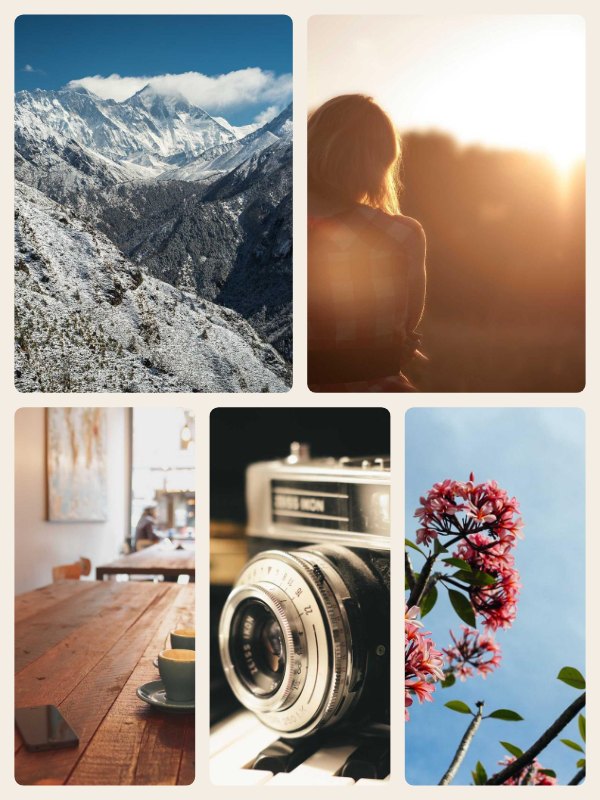
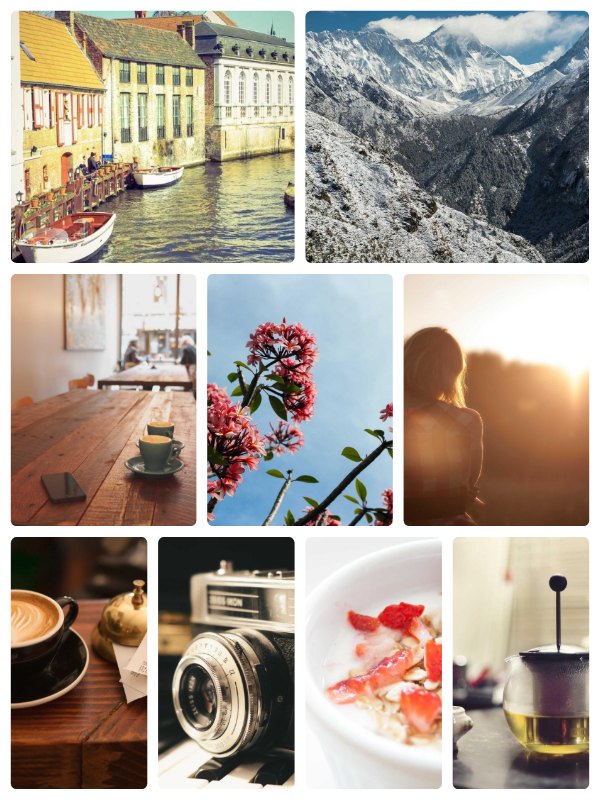
Every image is read, cropped, and rendered locally through your browser's HTML5 Canvas engine. Family portraits, travel albums, and client proofs never touch remote servers or cloud queues.
Upload one photo to add an even white border, a vintage Polaroid frame, or a wide gallery mat—or load up to nine shots to craft a balanced picture collage with symmetric or staggered rows.
Open ImageCollage, drop your files, and download crisp JPG or PNG exports immediately. There are no account walls, no daily limits, and no corner logos stamped across your work.
A single mathematical layout solver powers both the live preview and offscreen export. Click any tile to zoom, pan, or rotate 90°, drag tiles to swap order, and export at 2000px+ print-ready sharpness.
Drag and drop JPG, PNG, or WebP files straight onto the canvas, or click Select Photos. You can upload images in one batch or append more anytime using the floating bottom-right button up to nine photos.
Choose a canvas ratio such as Original, 1:1, 3:4, 9:16, or A4. Switch between matching layout templates, drag tiles to reorder, click any photo to fine-tune framing, and dial in border thickness, corner radius, and color.
Select JPG for fast social sharing or PNG for crisp lossless borders, then click Save. Your finished photo collage renders locally and saves straight to your device in less than a second.
Every image collage exported from ImageCollage targets at least 2000px on the short side (capped safely at 16 megapixels for mobile browser stability). Use this reference table to match your layout to social platforms or print paper without awkward cropping.
| Ratio Preset | Export Dimensions | Best Photo Count | Ideal Use Case |
|---|---|---|---|
| Original | Matches source aspect | 1–4 photos | Zero-crop single photo borders & natural side-by-side merges |
| 1:1 Square | 2000 × 2000 px | 1, 4, 9 photos | Instagram carousels, album covers, classic 2×2 and 3×3 grids |
| 3:4 Portrait | 2000 × 2667 px | 3, 4, 5, 9 photos | Editorial 1+2 lookbooks, Pinterest pins, Instagram vertical feed |
| 9:16 Tall | 2000 × 3556 px | 1–6 photos | Instagram Stories, TikTok photo slides, phone wallpapers |
| 4:3 / 3:2 Landscape | 2667 × 2000 / 3000 × 2000 px | 2, 5, 6 photos | Blog feature headers, before-and-after comparisons, desktop frames |
| A4 Portrait / Landscape | 2000 × 2829 / 2829 × 2000 px | 4, 6, 9 photos | Home photo printing, scrapbooks, wall vision boards (Print guide) |
Turn weekend trips, seasonal lookbooks, or product launches into a cohesive 9-photo image collage. Switch between classic 3×3 grids and staggered 2·3·4 or 4·3·2 arrangements sized cleanly for 1:1 posts, 3:4 portrait feeds, or 9:16 Stories.
Need to join two screenshots, pair a before-and-after renovation shot, or stack travel photos seamlessly? Try our dedicated Combine Images workflow with zero-border presets and automatic ratio balancing for picture collages.
Arrange 4, 6, or 9 family snapshots onto an A4 sheet with even white trim margins, or give a single portrait an instant film-card border. Visit our Photo Collage for Printing page for print-ready A4 presets and DPI tips.
No. ImageCollage runs 100% locally in your web browser using HTML5 File and Canvas APIs. Your images are never transmitted to or stored on any server, keeping personal family albums and work documents completely private.
Yes. Uploading 1 photo automatically activates Single Photo Border mode with three styles: Even Border, Polaroid (wider bottom margin), and Gallery Mat. Keep the Original aspect ratio to wrap your entire photo with zero cropping.
When you upload 9 photos for an image collage, you get five dedicated layouts: classic 3×3 grid, horizontal staggered 2·3·4, horizontal 4·3·2, vertical staggered 4·3·2, and vertical 2·3·4.
Click or tap any photo to open the quick editor where you can zoom up to 3×, drag inside the frame to re-center your subject, rotate 90°, replace, or delete it. To swap two tiles, drag one onto another (long-press first on touchscreens).
Never. Every download is 100% watermark-free. Photo collages render at a target short edge of 2000px (capped safely at 16MP to protect mobile browsers), and you can pick 92% high-quality JPG or lossless PNG.
Yes. ImageCollage works directly in Safari, Chrome, Edge, and Firefox across iOS, Android, macOS, and Windows with no app download or account registration required.
Yes. Choose A4 Portrait or A4 Landscape in the Aspect Ratio bar—or start on our Photo Collage for Printing page—and export as PNG or high-quality JPG for sharp home and studio prints.
Mobile browsers such as iOS Safari enforce strict HTML5 Canvas memory limits. Capping output at 16 megapixels (for example 4000×4000px) ensures reliable, high-definition exports without browser tab crashes.